

Santa Caught On Camera in Your Family Room
Create your Santa Caught On Camera
Watch a short motion study
History
Loading history…
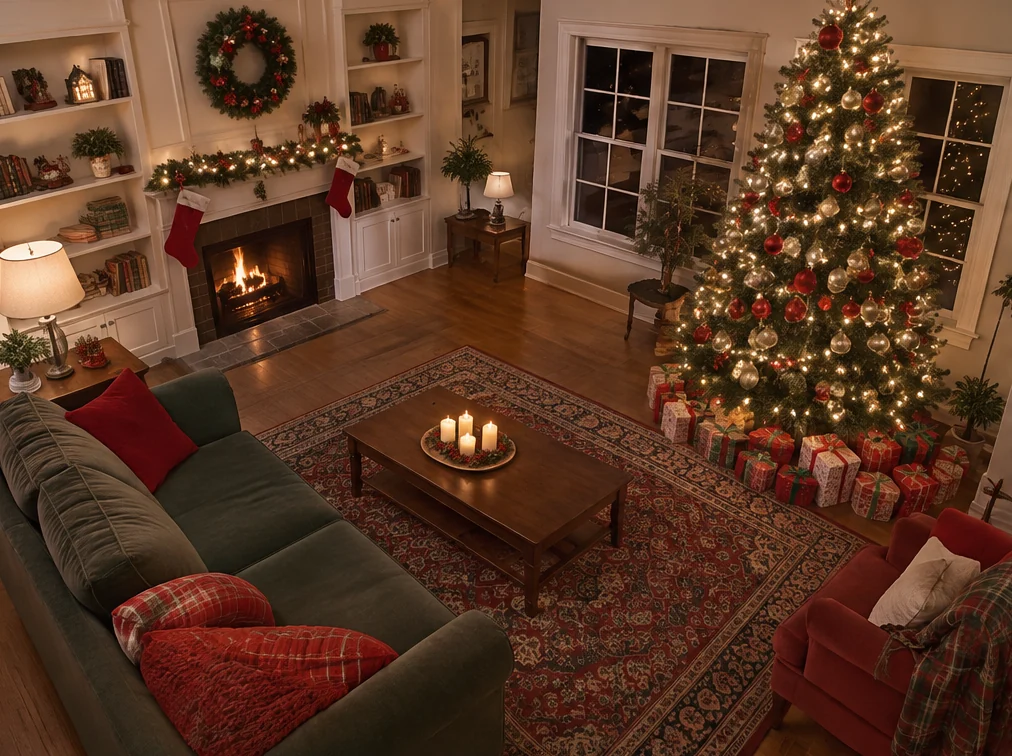
Santa Caught On Camera turns one photo of your living room or porch into a 15-second fixed-camera-style holiday clip. Upload your photo as @Image1, review or edit the pre-filled effect prompt, then start the generator after checking the live credit quote.
Create a Santa Caught On Camera holiday scene
- Choose one clear photo of your living room or porch, ideally showing the tree and a visible entryway.
- Upload the photo as @Image1; the generator requires exactly one image.
- Review the built-in effect prompt and edit it if you want to adjust the scene while keeping the fixed-camera view.
- Check the live credit quote, then start generation and wait for the clip to finish.
From room photo to Santa scene
Ideas for a family-room reveal
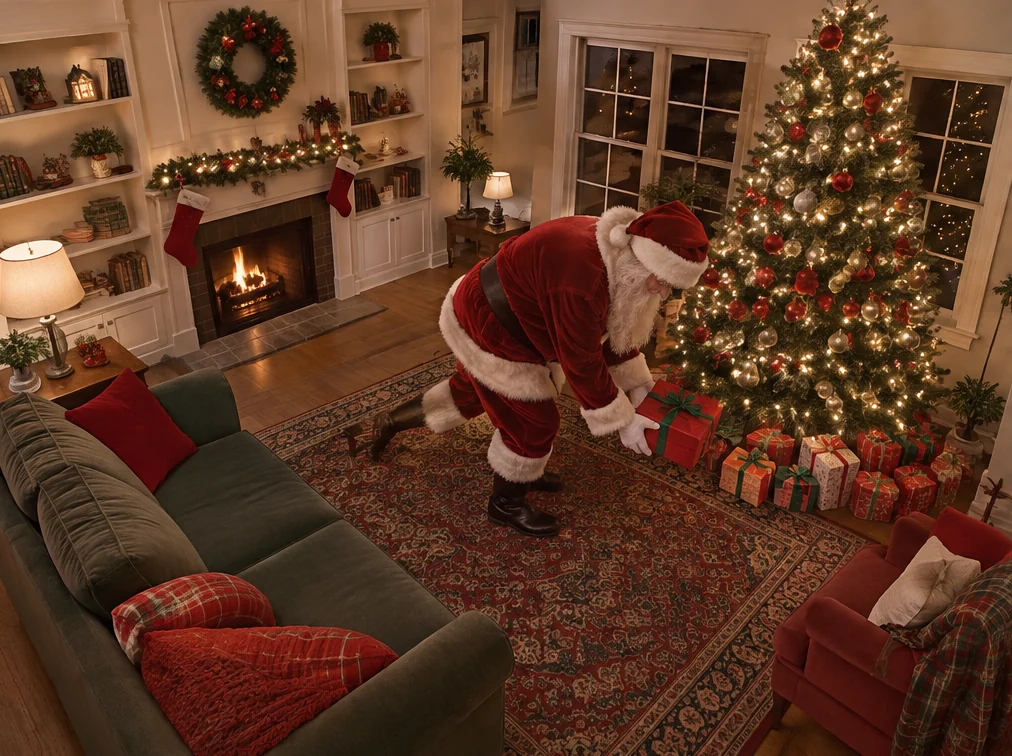
- A tree-side surprise Use a room photo that shows the full tree and floor space beneath it for a clear present-placement moment.
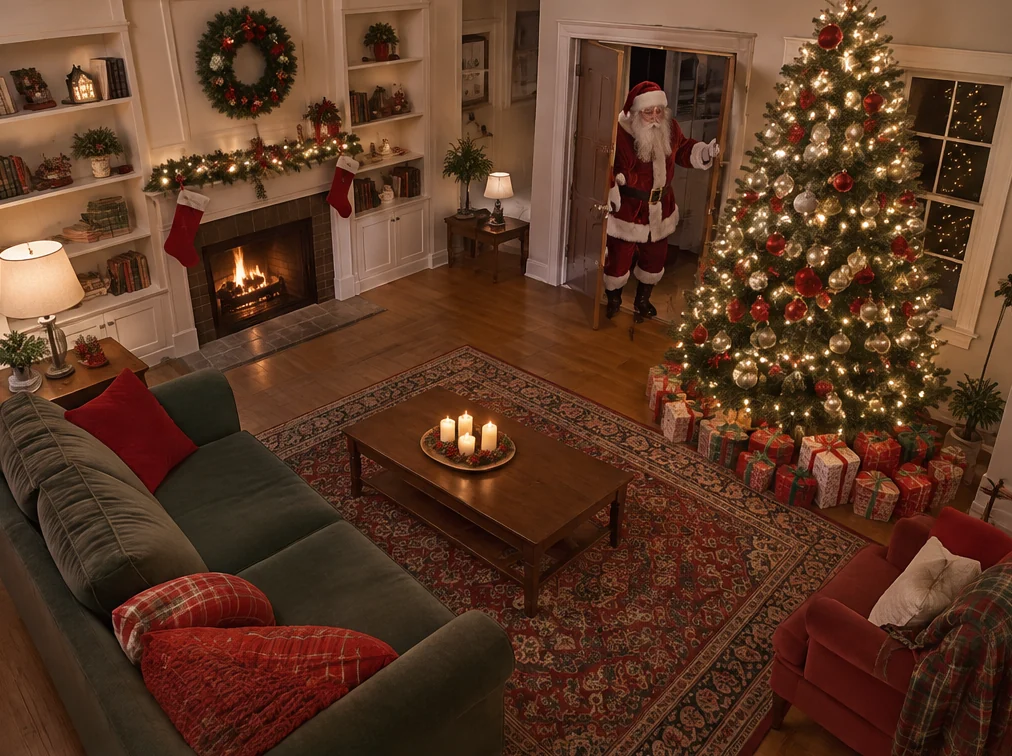
- A porch arrival Choose a porch photo with a visible door and open landing so Santa’s entrance and departure have room to read.
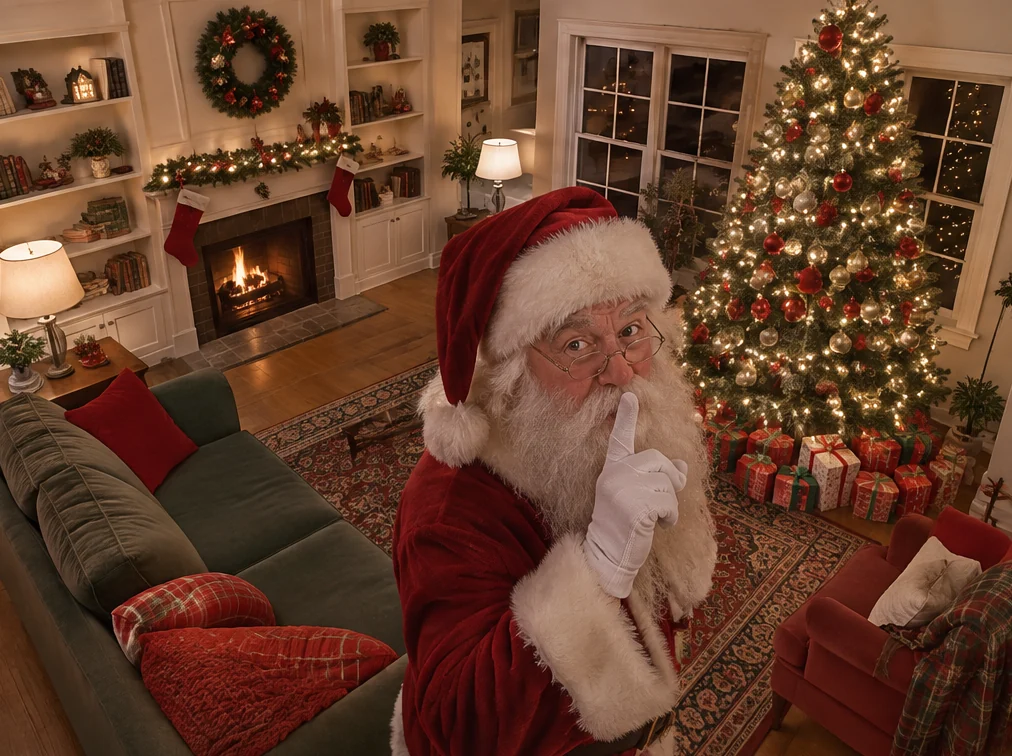
- A playful camera glance Keep the camera angle high and steady, with the tree in frame, to make Santa’s brief look toward the lens part of the scene.
Check these details before saving
- Make sure the room layout, shelves, doorway, and tree still resemble your uploaded photo.
- Check that Santa’s entrance, present placement, camera glance, and exit read clearly in the 15-second clip.
- Look for unwanted visual artifacts or overlays; the intended look is a fixed home camera view without a timestamp or real security brand overlay.
Common questions
What is Santa Caught On Camera?
It is a 15-second generated holiday clip that uses one room or porch photo as its visual reference and depicts Santa entering, leaving a present, glancing at the lens, and exiting.
Can I try Santa Caught On Camera free?
Check the live credit quote shown in the generator before starting, and visit the pricing page for current plan details. No credit amount is stated here.
What do I need to upload or type?
Upload exactly one photo of your room or porch as @Image1. The effect prompt is pre-filled, so you can use it as provided or edit it before generating.
How long does it take to make the clip?
Generation usually takes a short wait, and the time depends on queue load.
How can I make the present placement easier to see?
Choose a photo with the tree and the floor beneath it clearly in frame, and keep the doorway visible so Santa’s entrance and exit feel connected to the room.
More video ideas
mfma.net · Updated
See update history
- — Added a guide to creating a 15-second fixed-camera-style Santa clip from one room or porch photo.